On April 1, 2026, I started Western Governors University's accelerated bachelor's / master's program in computer science.
WGU is unusual, in a good way. It's accredited, but it uses a competency-based model. If you already know the material, you can prove that quickly through either a proctored final exam, called an Objective Assessment (OA), or a project, paper, or presentation, called a Performance Assessment (PA).
In the 11 days after starting, I passed 10 classes, with one Performance Assessment still awaiting evaluation at the time I wrote this. After I mentioned that on the WGU subreddit, enough people asked how I was moving so fast that it made sense to write this up.
This post focuses on OAs, because that has been the easiest place for me to accelerate so far. PAs usually require more context and more output-specific work. I may write about those later, but this one is about how I approach Objective Assessments.
Prior Experience Matters
There's no clean way around this: a major reason I've been able to move quickly is that I have already done a lot of this learning before.
I'm a self-taught software engineer with five years of professional experience across different technologies and problem domains. That background gives me a large head start.
That said, I don't think this process is only useful for people with experience. Even if you can't replicate my pace, the strategy still holds up. The real goal is to stop treating the course material as a giant wall of content and figure out, as early as possible, what the assessment actually expects from you.
Always Start with the Pre-Assessment
At a traditional university, you usually don't get a structured pre-test that mirrors the final. At WGU, you often do, and that makes it one of the most valuable tools in the course.
The first thing I do when I open a class is take the pre-assessment. I do this regardless of how familiar I think I am with the material. It doesn't matter if I expect to do well, and it doesn't matter if I expect to bomb it. I want signal immediately.
Not everything in the course material is equally relevant to passing the OA. The pre-assessment gives you a fast approximation of what the course actually emphasizes, which lets you study with much better aim.
Finding Your Pre-Assessment Results
This section is most relevant for standard multiple-choice OAs taken through the normal WGU testing flow. If your course uses a different format, the exact extraction details may vary.
After taking the pre-assessment, go back to the course page and click Pre-assessment Report. Sometimes the results take a minute to appear. I often need to refresh the page a couple of times before the button shows up.
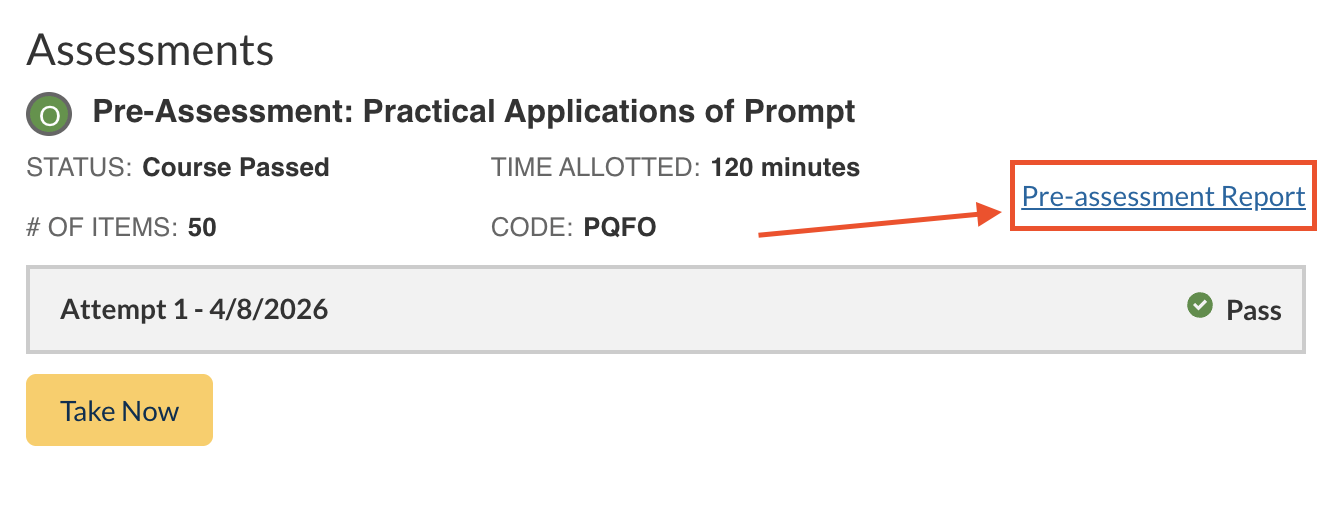
The Competencies and Topics view is useful at a high level, but I find the question-level review much more actionable.
To get there, click Print View at the top of the report. That gives you a full question-by-question view showing the prompt, your answer, and the correct answer.

That page is already useful on its own. In my experience, the real OA often feels very similar to the pre-assessment in both structure and content. But I like to take it one step further and turn that data into something AI can analyze cleanly.
Extracting Results for AI Review
You can absolutely select the whole page and paste it into your AI tool of choice. That works. But the formatting tends to be messy, and cleaner input generally produces better output.
To make this easier, I built a Chrome extension that helps export pre-assessment results. It's currently awaiting review, should be available soon, and I'll update this post once it's live: WGU OA Exporter.
Extension Flow
If you install the extension, this becomes the simplest path. Install the extension in Chrome, open your pre-assessment print view page, and use the buttons it adds to the page.
- Install the WGU OA Exporter extension in Chrome once it's available.
- Navigate to your pre-assessment print view page.
- Click
Copy Resultsto copy the full question-and-answer results to your clipboard. - If you want a file instead, click
Download as CSV.
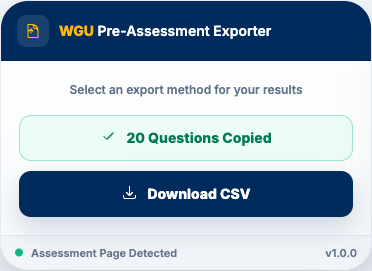
In most cases, Copy Results is the fastest option, because you can immediately paste the output into your AI tool and move on to analysis.
Manual Flow
If you don't want to use the extension, or you want to understand the manual workflow, start by pasting this prompt into your preferred AI tool:
# Overview
I am attending a university and just took a pre-test. I would like to be able to extract the pre-test info in a clean output format to feed into an AI tool for analysis.

Create me a full JavaScript function I can paste into the browser console of my web page to extract this data using the following information:

## Details

Each question on the page is contained within a div with the `cr-question` class.

Within this div there is a `p` element with the class `top-question` which contains the question text.

Each question contains a table with class `answer-table`. It has three columns: the answer text, "Your Answer", and "Correct Answer". Each row in the tbody represents one answer choice. If a column cell contains an <img> with `alt="Checkmark"`, that answer was selected or marked correct for that column.

## Required Output Format

Format each question as a block like this:

```
Q1. [INCORRECT] Which key benefit is associated with artificial intelligence?
  [ ] Implementing common sense
  [ ] Performing independent reasoning
  [YOU] Predicting beyond training data
  [CORRECT] Processing data in real time
```

Rules for answer row labels:
- If the answer was both your answer AND the correct answer: [YOU/CORRECT]
- If it was only your answer: [YOU]
- If it was only the correct answer: [CORRECT]
- All other answers: [ ]

The [CORRECT] / [INCORRECT] label after the question number should be derived entirely from the answer row data, not from any icon or attribute on the question element. A question is correct if and only if the answer row the user selected also has a Correct Answer checkmark.

Separate each question block with a blank line. After all questions, append a summary line like:

```
Results: 4/20 correct (20%)
```

## Behavior Requirements

- The function should require no arguments and should work entirely by querying the live DOM
- The function should automatically copy the full output to the clipboard using a hidden textarea and `document.execCommand('copy')`
- Do not use `navigator.clipboard.writeText()`
- After the copy attempt, log "Copied to clipboard!" on success or "Copy failed — output is visible above." on failure
- Output the full result via `console.log()` as well
- The entire thing should be a self-invoking function (IIFE) so the user only needs to paste and press Enter
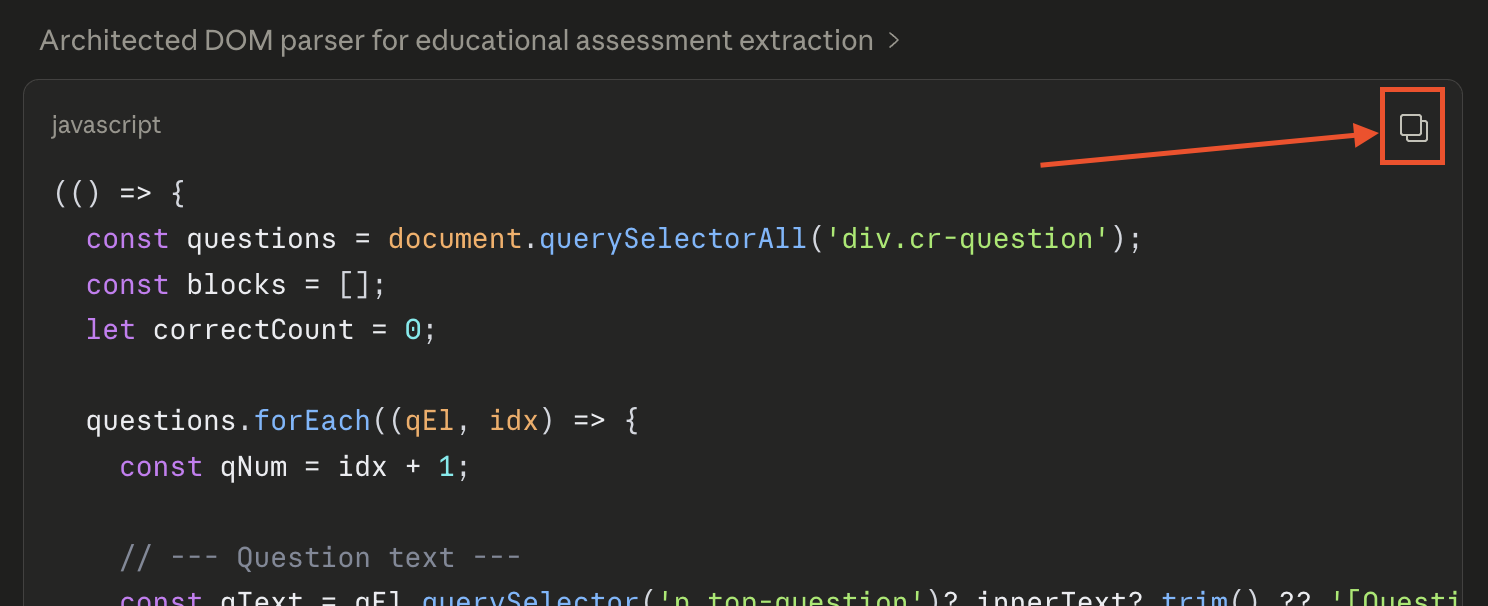
Once the AI generates the script, copy it. Most major AI tools now give you a convenient copy button for code output.
Then open your browser developer tools on the pre-assessment print view page. The simplest way is usually to right-click anywhere on the page and choose Inspect.
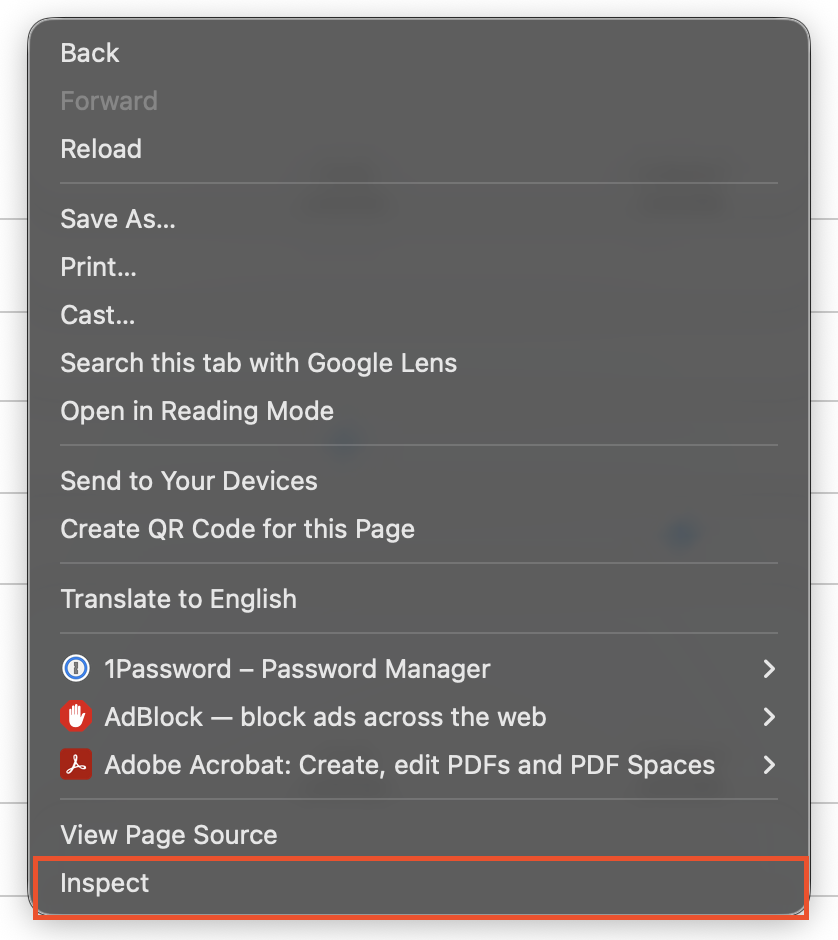
From there, click the Console tab in DevTools. Your exact layout may differ depending on your browser and how your developer tools are docked, but the console is usually visible near the top of the DevTools window.
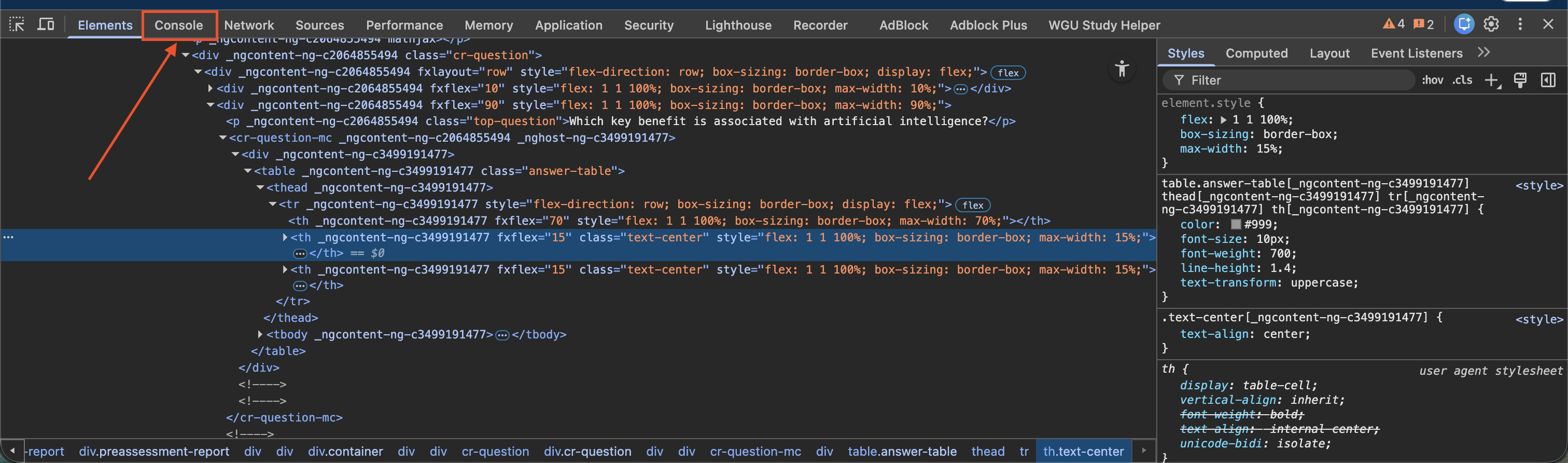
Paste the AI-generated script into the console and press Enter. If everything works, the extracted results will be copied to your clipboard and printed in the console as one large clean text block.
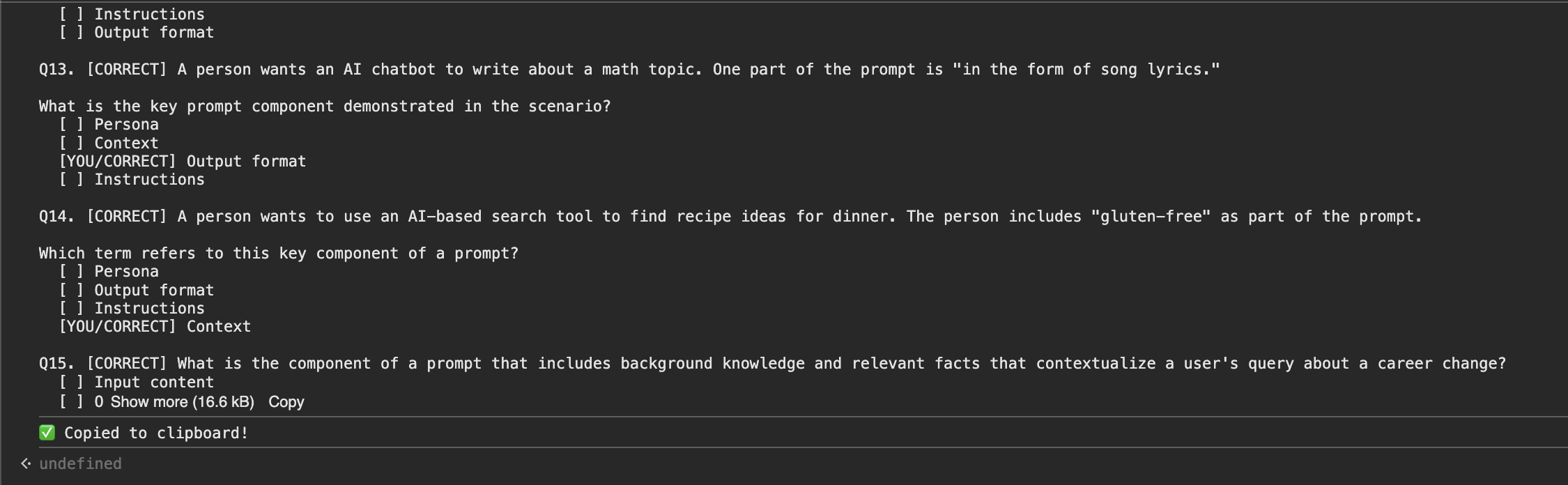
Chrome and Edge will sometimes block direct pasting into the console as a safety measure. If that happens, type allow pasting into the console first, press Enter, and then paste your script again.
Analyzing the Results
So far, I've only failed one pre-assessment, but my next step is basically the same regardless of the score. Even when I score above 90%, I still want a fast breakdown of where I'm weak, where I'm strong, and what patterns show up in the mistakes.
I take the extracted question data and paste it into an AI with a prompt in this general format:
I have just completed a pre-assessment for a class at my university.
The class is [INSERT CLASS NAME AND CODE] and I have provided the results of my pre-assessment below.
Please analyze the results, extracting the general themes that I am good at, and where I need to study more.

[PASTE PRE-ASSESSMENT RESULTS]
This saves me from manually reviewing every question in isolation. Instead, I get a quick synthesis of the concepts I already understand and the areas where I actually need to spend time.
Generate Quizzes from the Gaps
Once I know where I feel solid and where I don't, I usually use the pre-assessment results to generate focused quizzes.
There are dedicated tools for this, but I often just use the LLM I'm already working with. For me, that's usually Claude. My prompt looks something like this:
Let's go one-by-one through these concepts, generating a 10-question quiz for each of these themes using the content of the assessment as a guide for your generated quiz. Make the questions relevant to the content here, don't extrapolate based on your knowledge of what might be covered in the course unless it's obviously included in other questions provided previously, or the concepts are very closely related to the questions provided previously.
The quizzes should be interactive in your UI and multiple choice, avoiding leaking the answers to me through tags or other UI elements.
The important part is not the exact wording. The important part is constraining the AI to the material that is actually reflected in the assessment. You want reinforcement, not a generic lecture.
When to Schedule the OA
After I've reviewed the weak areas and I'm passing the generated quizzes consistently, I usually move straight to scheduling the OA.
The real assessment tends to feel very close to the pre-assessment in structure and difficulty. If I'm consistently getting the follow-up quiz questions right, that's usually enough signal for me that I'm ready.
If you're not ready yet, just repeat the loop:
- Take the pre-assessment.
- Extract the results.
- Analyze the weak areas with AI.
- Generate targeted quizzes.
- Repeat until the weak spots stop being weak.
Wrapping Up
This is the system I've been using to accelerate Objective Assessments at WGU:
- Take the pre-assessment immediately.
- Use it to identify what the OA actually emphasizes.
- Extract the question data into a clean format.
- Have AI summarize your weak areas.
- Generate targeted quizzes from the exact gaps you found.
- Schedule the OA once the pattern of mistakes is gone.
It works well because it turns studying into a feedback loop instead of a guessing game.
If you have questions, you can reach me at hello@duncanthe.dev, or message me on X or LinkedIn.